Faced with a massive and complex Conservation Easement (CE) on a 1,000-acre education camp—a property featuring 12 miles of public trails, rare species habitat, numerous buildings with limits on size, a lake with three dams, and 100 abutters—The Trustees of Reservations in Massachusetts acknowledged that they needed an efficient way to generate this property’s Baseline Document Report (BDR).
By leveraging Landscape’s data-integration capabilities, The Trustees successfully moved a significant portion of their BDR content generation process into the platform. The end result saved them dozens of hours of work in creating the BDR for this property, and remains in their toolkit for future, similar efforts. Their core strategy was to maximize use of Landscape’s robust database options, replacing the manual word-processing approach with a thorough and sequential data capture workflow.
The Divide and Conquer Approach
The Trustees used a combination of Landscape objects to break the complex BDR into manageable elements:
Work Items
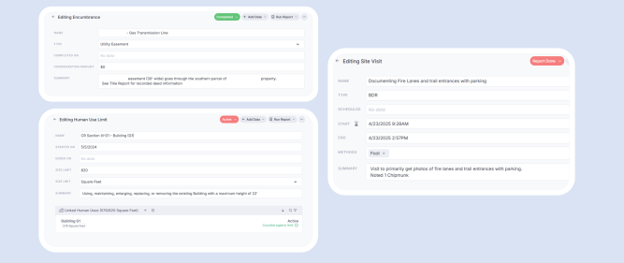
The primary section – the “Property Conditions Report” – formed the heart of the BDR, and pulled data from several Landscape Work Items:
- Baseline Report: One of these was used to house the Property Conditions Report Form and other “Form Helpers” (Table of Contents, Appendix list, etc.), while several others were used to hold additional pieces of the report such as the photo sections – more on that in the following section.
- Acquisition Documents: Used to document all deeds executed in acquisition of the property interest, and to capture the history of the acquisition.
- Surveys, Plans, and Encumbrances: Used to document legal boundaries, management plans, and relevant third-party interests on the property, respectively.
- Human Use Limits: Used to capture limitations on structural expansion, such as building square footage or trail length limits, along with the description and total used for the related Human Use Activity records.
- Site Visits: A dedicated BDR Site Visit type was used to track each trip to the field required for the baseline stage of the project.
Report Templates
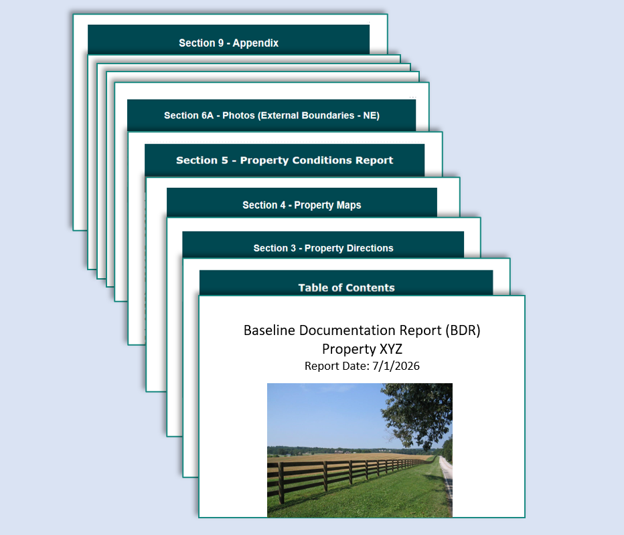
Instead of managing everything in a single template, there is a separate template for each section of the BDR. Each template’s name numerically indicates its place in the report generation and collation workflow; e.g. BDR_00A-Cover, BDR_05-PropCondReport, BDR_06-Photos, etc. The Trustees also used placeholder report templates for sections like the Table of Contents, preparer’s qualifications, and Appendix, so that each of these pieces matched the formatting of the primary baseline content that comes from Landscape.
For a deep dive on report templates, check out this article in our Knowledge Base.
Custom Forms
Similar to the report templates, a series of Forms and sub-forms captured different sections of the BDR – like Conservation Values, Property Conditions, Boundary Conditions (N, S, E, W), and so on. The primary Form consists of 65 questions and was set to automatically attach to the Baseline Report work item.
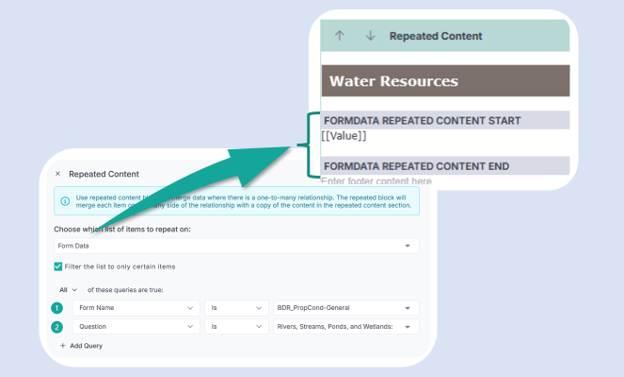
In most of the report templates, Form questions or responses were displayed individually using Repeated Content blocks rather than using a Form block. This approach allows Form response values to be placed contextually within each section of the report and, in some cases, used more than once.
Data Integration Through Available Fields
In addition to the top-level objects used to decompose each section of the BDR, The Trustees utilized a number of existing record, work item, and object fields within Landscape to capture every little detail. While many of the fields used have a clear connection to a BDR – such as basic property details, contact information, or site visit dates – others were employed in a creative way, like to manage the thousands of photos collected on the property.
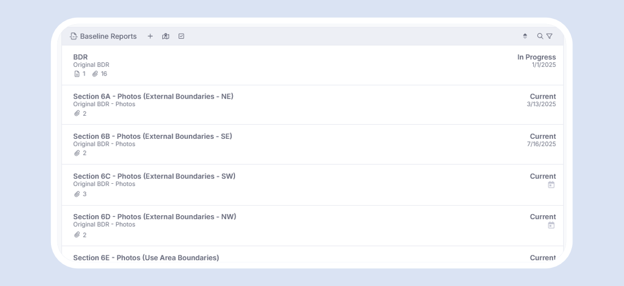
Rather than pulling photo data into the report sections directly from site visits, photos collected with the Landscape mobile app were copied to one or more distinct Baseline Report items with a specific Type (“Original BDR-Photos”). The process was thoughtfully designed with future projects in mind so that there could be one or several of these Baseline Report items, depending on the property.
Within each of the BDR-Photos work items, the geography and photo fields (attributes) were employed for separating and displaying the photos in an organized way within the report template:
- The Name of each Baseline Report photo work item was used as the section header in the relevant report template, such as “Section 6A – Property Boundaries” and “Section 6B – Rare Species Habitat”.
- Like the Name, the Baseline Report Summary for each photo section was used in the report template to describe the section contents.
- Map Feature Type was used for each photopoint in a given photo section to note their relationship to that section, e.g. “External Boundaries,” “Existing Structures,” etc.
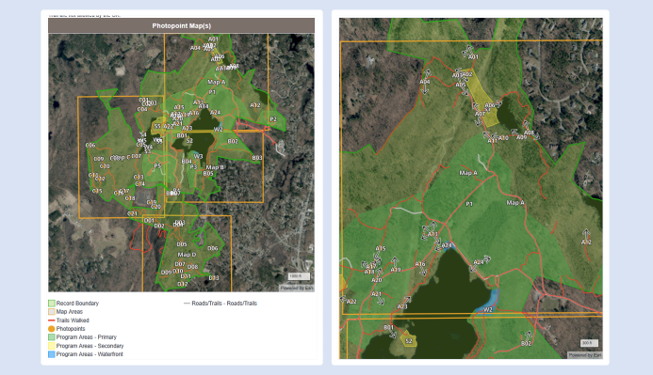
When visualizing such high-density photo data on a report map, however, The Trustees found that overlapping numbers and directional arrows often compromised clarity. To address this, they drew boundaries around clusters of photopoints using Baseline Areas. With simple labels of these distinct areas (e.g. A, B, C), they could then prepend the corresponding area identifier to each associated photopoint name. This strategy facilitated a clean “master map” view showing the larger grid alongside dedicated inset maps for every specific sector.
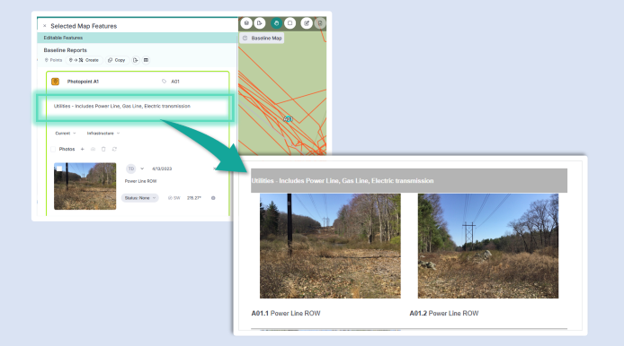
For particularly dense sections like Infrastructure, the team required further categorization into subgroups such as dams, roads, and parking facilities; so, they engaged the Map Feature Description field to act as a section break on the initial photo of each subcategory. Within the report template, this field was configured to display as a header, providing a clear visual transition and descriptive context for the subsections that follow.
Lastly, in a separate Baseline Report work item intended to hold the final product, two map points were drawn outside of the property boundary: one to host a cover photo, and another to host images of driving directions. The Map Feature Type for these points is changed to “BDR-Cover Photo” and “BDR-Directions,” respectively. These types were then used to extract and display only those photos in the relevant report templates.
Putting It All Together
With this solid foundation in Landscape, The Trustees no longer needed to scroll endlessly through long or disjointed word processing documents, folders and subfolders of photos, or poorly-scanned PDF files to compile such a massive BDR. Instead, they had only a few quick steps to polish and collate the final product.
Each piece of the BDR generated in Landscape is either downloaded directly as a PDF, or edited in another service to add context-specific appendices. Importantly, a significant element of the BDR that is not produced in Landscape are surveyed boundary and resource maps; for that, The Trustees leverage ArcGIS Pro for its professional-grade mapping capabilities.
Landscape is intended primarily for data gathering. Maps generated in Landscape should never be used to replace professional tools like ArcGIS or formal surveys.
Using the section headers from the Landscape reports as a guide, the last step was to stitch each individual report together into a final document and add dynamic content like page numbers. This final document is then uploaded back to the “BDR-Original” Baseline Report work item in Landscape.
Conclusion
By designing their baseline reports around these structured data entry points and work items in Landscape, The Trustees ensured that all required information was consistently and automatically compiled, resulting in a professional, accurate BDR while drastically reducing the time spent on manual document assembly. Best of all, the lasting result is a genuinely useful Property record full of meaningful, accessible data for future stewards of the site.
About The Trustees of Reservations: “As a steward of distinctive and dynamic places of both historic and cultural value, The Trustees is the nation’s first and Massachusetts’ largest preservation and conservation nonprofit, and its landscapes and landmarks continue to inspire discussion, innovation, and action today as they did in the past. Supported by members, friends and donors, The Trustees’ more than 100 reservations are destinations for residents, members, and visitors alike, welcoming millions of guests annually.”
Our thanks go out to Tom Dodd and his team for their collaboration on this content.
Has your organization achieved something noteworthy using Landscape that other land trusts could learn from? We’d love to hear about it—contact support@dendroyka.com and share your story.